01
Bring your screens.
Upload screenshots of your app, dashboard, or latest feature. Start with what you want people to see.
 screenshotstovideo.Log inCreate a video
Turn product screenshots into demo and launch videos.
Start with your screens. Show what matters.
For product demos, feature updates & launch days.
Choose 5, 10 or 15 seconds · 720p MP4
THE SAME SCREENS. A DIFFERENT ENERGY.
From your next feature drop to your big launch.
Start with the screens you already have.
Put your product front and center. Turn the dashboard, the details, and the big reveal into one clear story.
Make something like thisIllustrative motion preview. Fictional product, not customer work.
FROM CAPTURE TO CUT
Start with the screens you have.
Show the features that matter.
Upload screenshots of your app, dashboard, or latest feature. Start with what you want people to see.
Choose what to highlight and the order to show it in. Give each screen a part in the story.
Review the details and export your video for your website, launch, or next update.
LET THE PRODUCT DO THE TALKING
Make the interface the main character.
Every frame should help someone get it.
Give the key feature its moment with purposeful movement and a closer look.
Build around the product you actually made. Start with screenshots instead of recording your screen.
Keep your launch content moving as your product grows and changes.
ACTUAL GENERATED OUTPUT
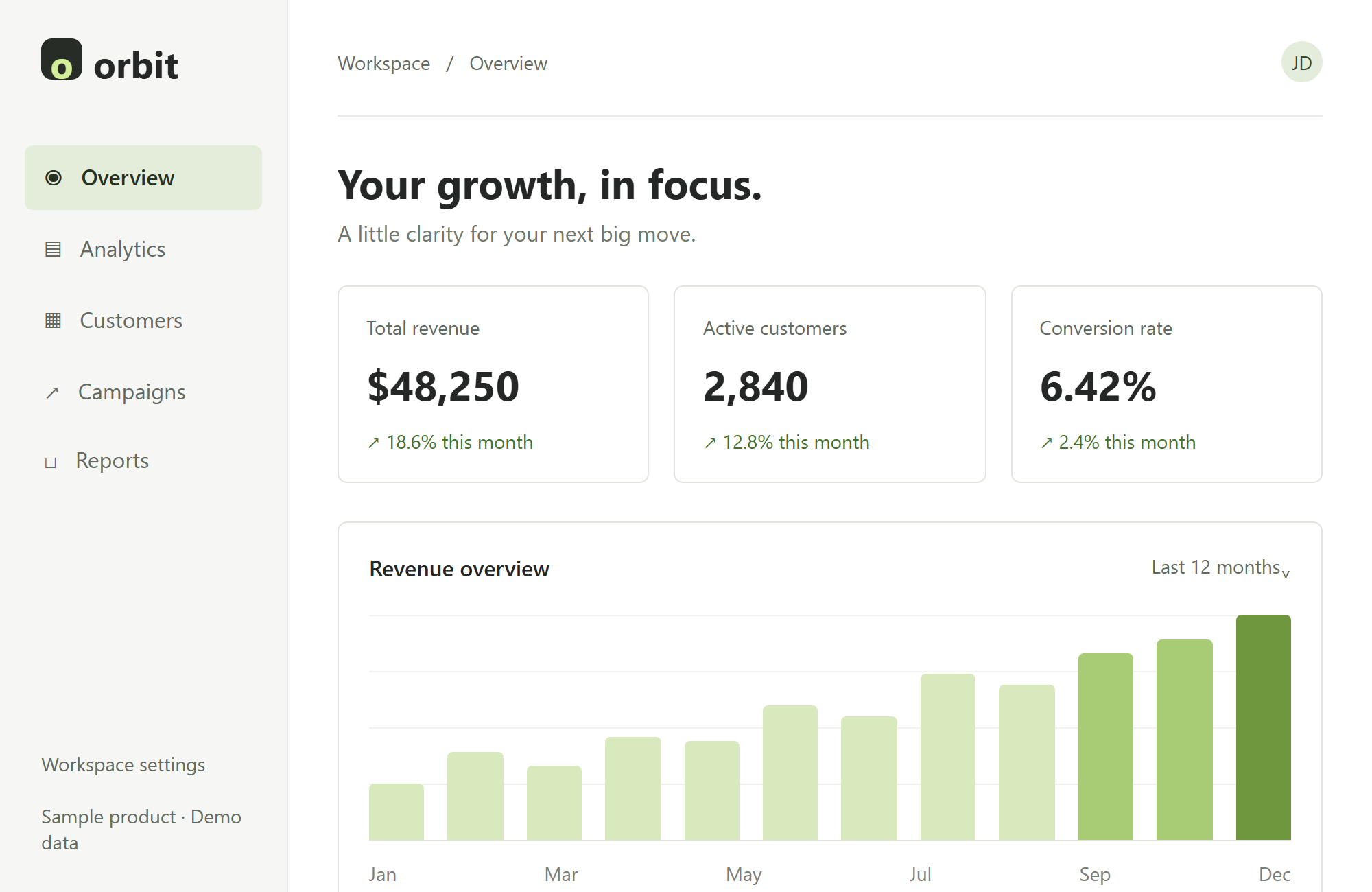
A complete Orbit dashboard, generated into 10- and 15-second videos through our workflow. Compare the source with each original output.
View the source screenshot FOR THE THINGS YOU'RE READY TO SHIP
Explore the examples. Find your direction.
Make your next launch a moving one.
BEFORE THE FIRST FRAME
Product demos, feature announcements, and short launch videos. The previews on this page use a fictional product to illustrate the format.
No. Video generation requires paid access; you can browse the examples before purchasing.
Start with screenshots you already have. If you need to show an exact live action such as typing or dragging, a screen recording may be a better source.
Product websites, launch announcements, feature updates, and social posts are common uses. Check your chosen platform's requirements and the rights to your uploaded content.
Upload up to 4 PNG, JPEG or WebP screenshots, up to 5 MiB each and 20 MiB in total. SVG is not supported. Use clear screenshots with readable interface text.
Arrange your screenshots, describe the direction, and choose a duration and frame in Studio. The screenshot preview shows your inputs; the AI-generated result is available after submitting a paid generation.
Videos are 720p MP4 with no generated audio. Choose 5, 10 or 15 seconds and a 16:9, 9:16 or 1:1 frame. The homepage includes actual 10- and 15-second outputs for comparison with the source screenshot.
A task reserves one paid render. Confirmed generation failures return that render; a temporary timeout keeps the task available for checking. Creating a new successful video with changed settings uses another render. A returned render is not an automatic refund of the pack payment.
Review the privacy policy and the storage information in Studio before uploading. Do not upload personal or confidential information you are not authorized to process.
You must have the necessary rights to your screenshots and any other materials. Review the terms for the applicable usage conditions before purchasing.
Unused paid renders do not expire in the application. Input screenshots expire for new tasks after 24 hours. Generated-file availability follows the provider’s retention policy, so download important results rather than relying on indefinite storage.